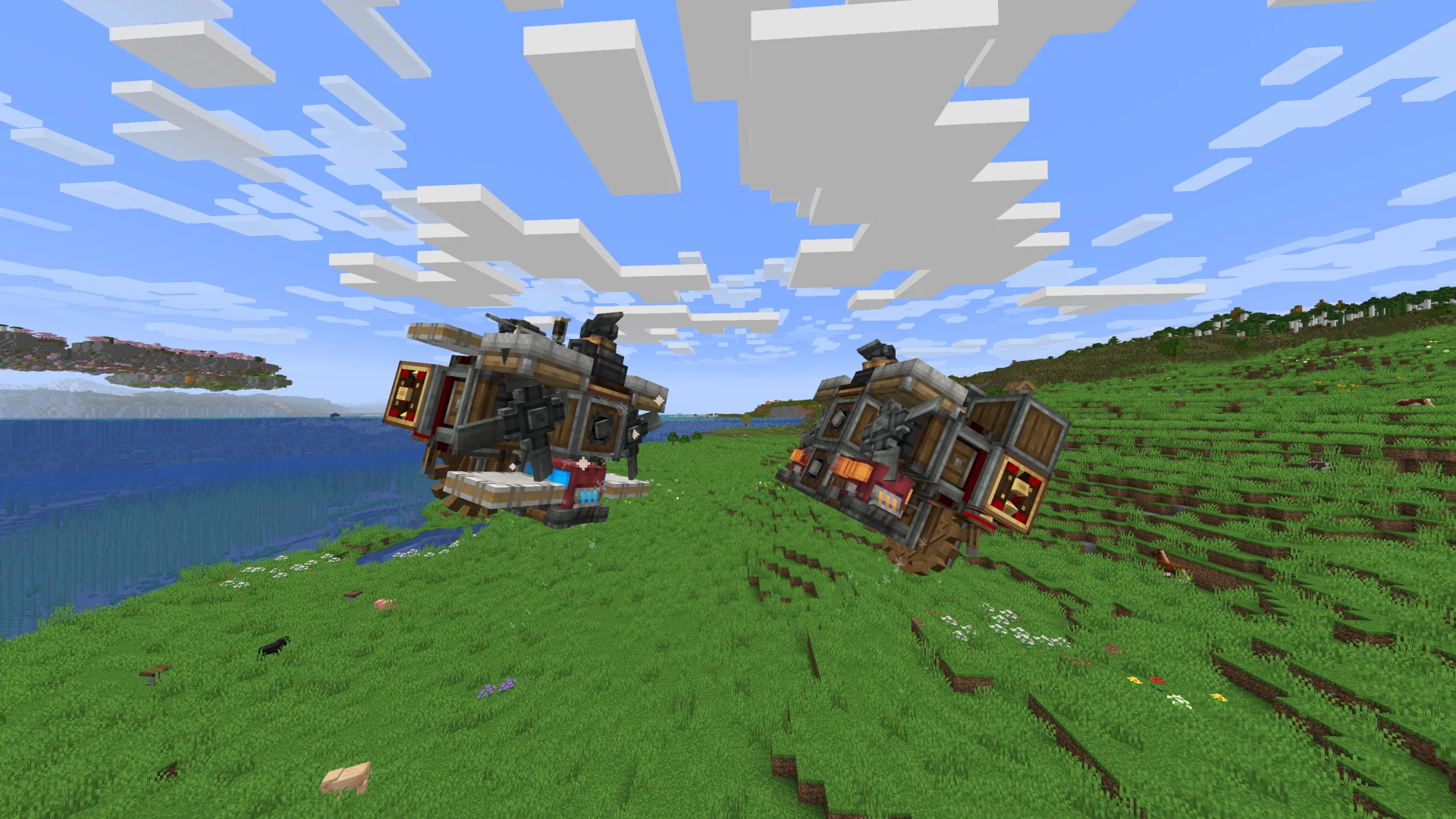
Resolve common loader, version, launch and mod-folder problems. This guide focuses on practical, version-aware steps and avoids assuming that every release or add-on behaves the same way.
Start with version matching
A large share of mod setup problems come from mismatched game versions, loader builds, dependencies or profile folders. Verify those before changing unrelated settings.
Use logs for the next clue
If the game still fails, read the launcher or game log for the mod or dependency named near the error. Avoid deleting worlds or changing many mods at once; isolate changes so the cause is easier to identify.
Installation and safety checklist
- Back up important worlds before changing mods.
- Match the Minecraft version and mod loader to the selected file.
- Use the correct profile’s mods folder.
- Check release-specific notes when updating.
Change one thing at a time
When troubleshooting a modded setup, avoid replacing several files at once. Start by confirming the Minecraft version, loader and Immersive Aircraft file, then test again before changing anything else.
If the game launches after removing a recently added mod, that gives you a useful clue. From there, check whether the two projects support the same game and loader versions.
Keep a working profile
Once you have a stable setup, keep a copy or note of the working configuration. This gives you a known-good point to return to after testing updates or new add-ons.
Related guides
- Immersive Aircraft Mod Download Guide
- Immersive Aircraft Mod Guide: Getting Started
- Immersive Aircraft Mod: How to Fly
Practical tip
When something fails, change one variable at a time. Confirm the game version, loader, mod file and folder location first, then test again before adding extra mods or resource packs. This keeps the cause of an issue easier to identify.